
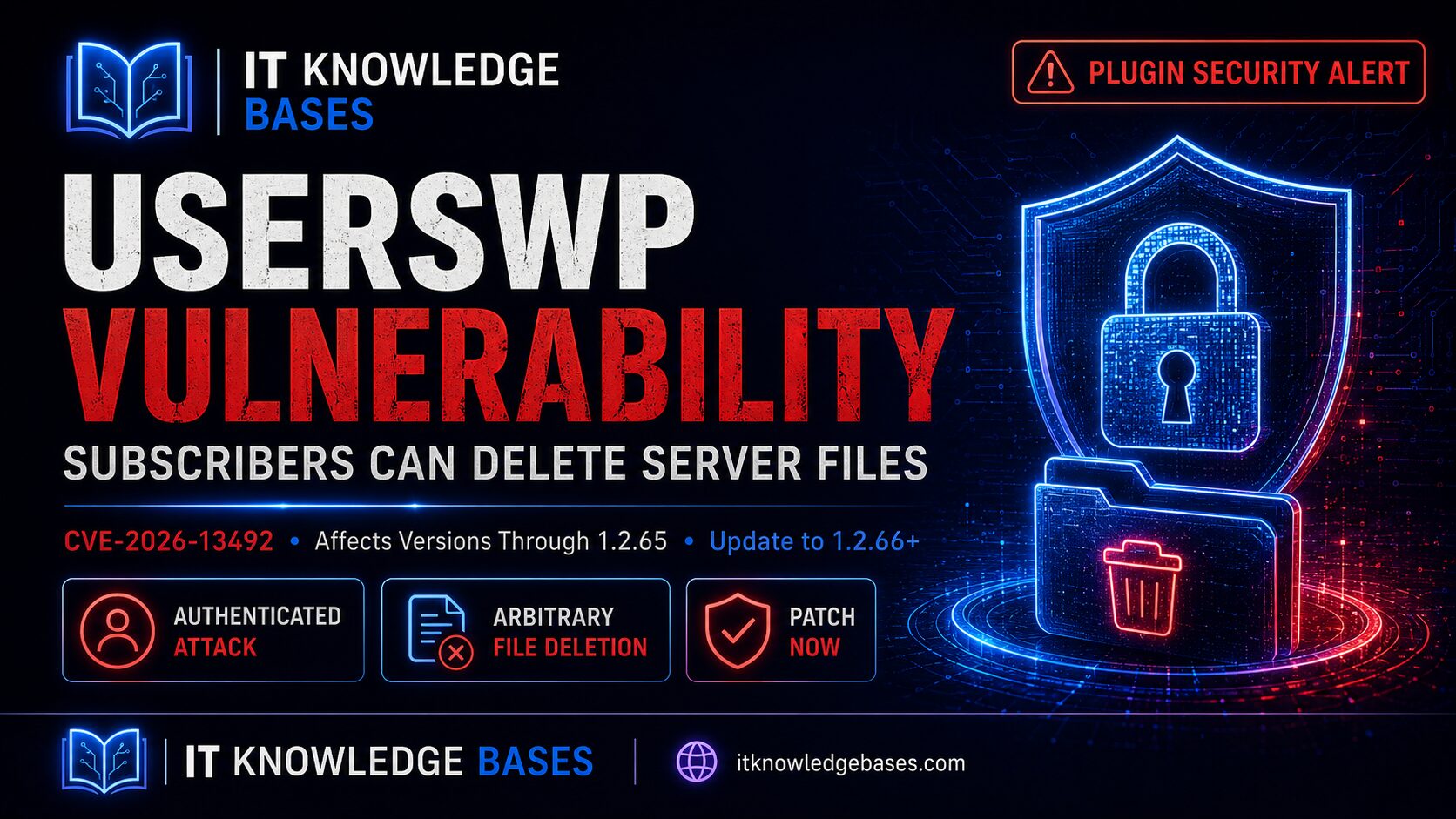
A high-severity vulnerability in the UsersWP WordPress plugin could allow an authenticated attacker with a basic Subscriber-level account to delete files from the affected website’s server. UsersWP versions through 1.2.65 are vulnerable.
What Website Owners Need to Do
UsersWP is commonly used to provide front-end registration, login pages, user profiles and member directories. You do not need to understand the technical vulnerability to protect your site.
- Sign in to your WordPress administration dashboard.
- Open Plugins → Installed Plugins.
- Find the plugin named UsersWP.
- Check the version displayed beneath the plugin name.
- If the version is 1.2.65 or earlier, select Update now.
- Confirm the installed version is 1.2.66 or later.
- Test your registration, login, profile and member-directory pages.
- If the site is showing errors or files appear to be missing, contact your hosting provider before overwriting existing backups.
What Is CVE-2026-13492?
CVE-2026-13492 is an authenticated arbitrary file deletion vulnerability affecting the UsersWP plugin for WordPress.
The vulnerability affects UsersWP versions up to and including 1.2.65. An attacker must first have access to an authenticated WordPress account, but the account only needs Subscriber-level privileges or higher.
Subscriber is the lowest standard WordPress user role. On websites that permit public registration, memberships, customer accounts or front-end profiles, obtaining this level of access may be relatively easy.
Plain-language explanation
UsersWP includes features that let users upload and remove profile-related files. The vulnerable version did not adequately validate the stored file path before attempting to delete the file.
A malicious user could potentially manipulate that path so it points outside the expected WordPress uploads directory. If the website’s PHP process has permission to delete the selected file, the plugin may remove it.
Technical root cause
The issue results from two weaknesses working together:
-
Insufficient file-field validation:
UsersWP_Validation::validate_fields()processes file fields without removing directory-traversal sequences such as../. -
Unsafe path handling:
UsersWP_Forms::upload_file_remove()constructs the deletion target from the WordPress uploads directory and attacker-controlled metadata without adequately canonicalizing the path or confirming that it remains inside the uploads directory before callingunlink().
Severity and Affected Versions
| CVE ID | CVE-2026-13492 |
|---|---|
| Affected software | UsersWP for WordPress |
| Affected versions | Version 1.2.65 and earlier |
| Security fix | Version 1.2.66 |
| Recommended action | Install the newest release available |
| CVSS 3.1 | 8.8 High |
| CVSS vector | AV:N/AC:L/PR:L/UI:N/S:U/C:H/I:H/A:H |
| Privileges required | Authenticated Subscriber-level account or higher |
| User interaction | None required |
| Weakness | CWE-22: Path Traversal |
| Public disclosure | July 9, 2026 |
This issue should receive expedited attention on websites that allow users to register, maintain profiles, purchase memberships, access customer portals or otherwise obtain low-privilege WordPress accounts.
Why Arbitrary File Deletion Matters
Arbitrary file deletion does not automatically provide an attacker with administrator access or remote code execution. However, deleting critical files can cause a major outage, disable security controls and potentially contribute to a broader compromise.
An attacker may attempt to delete:
-
wp-config.php, potentially taking the site offline and exposing WordPress configuration or installation workflows until the file is restored -
.htaccesson Apache-based sites, potentially removing rewrite rules or locally configured access restrictions - Plugin files, which may disable security, authentication, ecommerce or backup functionality
- Theme files, which may break the public website or create application errors
- WordPress core files, which may cause failed requests or make the administration dashboard unavailable
- Other files that the web server’s PHP process has permission to delete
wp-config.php does not by itself guarantee that the attacker can take over the website. The outcome depends on the hosting environment, file permissions, database protections, available backups and the attacker’s other capabilities.
How to Check Whether Your Site Is Affected
- Open Plugins → Installed Plugins.
- Confirm whether UsersWP is installed.
- Record the installed version number.
- Treat version 1.2.65 or earlier as vulnerable.
- Update to version 1.2.66 or later.
- Prefer the newest version available.
- Confirm the website loads after updating.
- Test all UsersWP registration and profile functions.
If UsersWP is not installed, this specific vulnerability does not affect the site. Do not confuse UsersWP with other WordPress membership or user-registration plugins that may have similar names.
How to Update UsersWP
Update from the Installed Plugins page
- Sign in to WordPress as an administrator.
- Open Plugins → Installed Plugins.
- Locate UsersWP.
- Select Update now.
- Wait for WordPress to confirm that the update completed.
- Verify that the displayed version is 1.2.66 or later.
Update from the WordPress Updates page
- Open Dashboard → Updates.
- Select Check Again.
- Select UsersWP from the plugin update list.
- Select Update Plugins.
- Return to the Installed Plugins page and verify the version.
If no update appears
- Select Dashboard → Updates → Check Again.
- Confirm that WordPress can reach the official plugin repository.
- Check whether your hosting provider manages plugin updates.
- Download the newest release from the official UsersWP WordPress plugin page.
- Contact your hosting provider or UsersWP support if the update fails.
Test the site after updating
Use a private or incognito browser window and test:
- Front-end registration
- User login
- Password reset
- Profile editing
- Avatar and cover image uploads
- Member directories
- Account pages
- Email notifications
- Logout
Handle Existing Backups Safely
Do not automatically overwrite older backups before determining whether the website may already have been affected.
If there are no signs of compromise
Create a complete backup containing the website files and database before making substantial changes. Confirm that the backup completes successfully and can be accessed if recovery is needed.
If files may already be missing
A new backup of the current site may already be incomplete. It can still be useful as an incident snapshot, but it should not automatically be considered a clean recovery copy.
- Do not delete or rotate older backups.
- Contact the hosting provider.
- Ask the provider to preserve the current site, available logs and existing snapshots.
- Label any new snapshot as potentially compromised or incomplete.
- Record when the issue was first discovered.
- Identify the most recent backup that predates the suspicious activity.
- Do not restore blindly before preserving the current evidence.
Verify That Critical Website Files Still Exist
You can review files through your hosting control panel, SFTP, SSH or with assistance from your hosting provider.
Confirm that the following remain present:
wp-config.phpindex.phpwp-admin/wp-includes/- The active theme directory
- Required plugin directories
.htaccess, when used by the server
wp-config.php.
It may contain database credentials, security keys and other sensitive configuration values.
Verify WordPress core files with WP-CLI
Administrators with SSH and WP-CLI access can run:
This compares WordPress core files against official checksums. It does not verify:
wp-config.php.htaccess- Premium plugins
- Custom plugins
- Custom themes
- Files in the uploads directory
Review recently modified files
Site administrators with shell access can also review files changed recently. The appropriate command and directory will vary by hosting environment.
Replace /path/to/wordpress with the actual WordPress installation directory. A recent modification does not automatically mean a file is malicious; updates and normal site activity also change files.
Review Recently Created User Accounts
Because exploitation requires an authenticated account, review recent registrations and low-privilege users.
- Open Users → All Users.
- Review recently created Subscriber and customer accounts.
- Look for clusters of registrations within a short period.
- Check for unfamiliar usernames or suspicious email addresses.
- Verify that no account received an unexpected role change.
- Review all Administrator accounts.
- Record suspicious account details before deleting or modifying the account.
Record available information such as:
- Username
- Email address
- Registration time
- Assigned role
- Relevant IP address, when available
- Related login and profile activity
Do not assume that an unfamiliar account is malicious. Membership, ecommerce and community sites may contain legitimate users that the administrator does not personally recognize.
Potential Detection Indicators
The vulnerable operation uses WordPress AJAX functionality. Standard Apache or Nginx access logs usually record the request path, method, response code, source address and user agent, but they normally do not include POST bodies.
Request parameters may be available through a web application firewall, reverse proxy, application tracing platform, WordPress audit plugin or specially configured logging system.
Where sufficient logging exists, investigate:
-
POST requests to
/wp-admin/admin-ajax.phpcontaining traversal patterns such as../, encoded sequences such as%2e%2e%2f, or unexpected absolute paths in file-related parameters - Unusual UsersWP file-removal or profile-file activity associated with recently created accounts
- Sudden PHP errors or HTTP 500 responses following UsersWP profile activity
- Unexpected file-not-found errors involving WordPress, plugin or theme files
- A group of new account registrations followed by profile editing, uploads or file-removal activity
-
Missing
wp-config.php,.htaccess, active plugin files or active theme files
SIEM and WAF considerations
Organizations that capture HTTP request parameters can alert on directory-traversal sequences submitted to admin-ajax.php. Determining whether the requester held a Subscriber or other low-privilege role generally requires correlation with WordPress audit or authentication records.
A WAF rule may reduce exposure temporarily, but it is not a substitute for installing the security update.
What to Do If Files Are Missing
Do not immediately restore or delete evidence without first establishing what happened.
- Contact the hosting provider and request preservation of available logs and snapshots.
- Record which files are missing and when the issue was discovered.
- Preserve a copy of the current website and database.
- Identify a likely clean backup created before the suspicious activity.
- Replace WordPress core files with clean copies from the official WordPress release when appropriate.
- Reinstall affected plugins and themes from trusted sources.
- Restore configuration files only from a protected, verified backup.
- Test the website after recovery.
- Continue monitoring for unexpected errors or account activity.
Reset credentials when compromise is suspected
If investigation identifies suspicious activity or broader compromise, consider resetting:
- WordPress Administrator passwords
- Hosting control-panel credentials
- SFTP and SSH credentials
- Database credentials
- WordPress application passwords
- API keys and integration secrets
- Administrator email passwords
Changing the WordPress database password requires updating the corresponding value in wp-config.php. Obtain assistance from the hosting provider if you are unfamiliar with this process.
Contact the hosting provider immediately when:
wp-config.phpis missing- The site displays a WordPress installation or configuration screen
- The site cannot connect to the database
- The administration dashboard is inaccessible
- Several files or directories are missing
- Security plugins disappeared or stopped loading
- You do not have a known-good backup
- You are uncertain how to preserve evidence and recover safely
Complete Response Checklist
Update and testing
- UsersWP is version 1.2.66 or later
- The newest available UsersWP release is installed
- Registration and login functions were tested
- Profile editing and file uploads were tested
- The member directory was tested
Account review
- Recent Subscriber accounts were reviewed
- Administrator accounts were reviewed
- Unexpected role changes were investigated
- Suspicious account details were preserved
File verification
wp-config.phpis present- WordPress core directories are present
- The active theme is present
- Required plugins are present
- WordPress core checksums were verified where possible
Backup and investigation
- Existing backups were preserved
- Older backups were not overwritten
- A current snapshot was labeled appropriately
- The newest likely clean backup was identified
- Relevant hosting and security logs were preserved
Additional protection
- Administrator passwords were changed if compromise was suspected
- Unknown active sessions were terminated
- Multifactor authentication is enabled for administrators
- A WordPress security scan was completed
- The hosting provider completed a server-side review where necessary
Frequently Asked Questions
Does CVE-2026-13492 require Administrator access?
No. It requires an authenticated account with Subscriber-level privileges or higher. Subscriber is WordPress’s default role for newly registered users unless the site administrator changes that setting.
Can the vulnerability be exploited when public registration is disabled?
The practical exposure is lower when public registration is disabled and no untrusted low-privilege accounts exist. However, an existing Subscriber, customer, member or compromised account could still potentially be used.
Does deleting wp-config.php automatically give an attacker control?
No. Deleting wp-config.php can take the site offline and expose configuration workflows, but it does not automatically provide valid database credentials, Administrator access or code execution. The eventual impact depends on the server configuration and the attacker’s other capabilities.
Is version 1.2.66 patched?
Yes. The official UsersWP changelog identifies version 1.2.66 as containing enhanced validation for file deletion. Site owners should still install the newest available version rather than deliberately stopping at the first fixed release.
Is a web application firewall enough?
No. A WAF may block some directory-traversal attempts, but it does not correct the vulnerable plugin code and may not recognize every payload. Updating the plugin is the required remediation.
How can I determine whether files were already deleted?
Verify that critical WordPress files and directories are present, run WordPress core checksum verification, inspect hosting and security logs, review recent user activity and ask the hosting provider to compare the current site with earlier snapshots.
Should I create a new backup before updating?
When there are no signs of compromise, creating a fresh backup is appropriate. When files may already be missing, preserve older backups and store any current snapshot separately as potentially incomplete. Do not overwrite the only likely clean recovery point.
Sources
The Bottom Line
Any website running UsersWP version 1.2.65 or earlier should update immediately, particularly when the site permits registrations, memberships, customer accounts or front-end profiles.
Installing the update closes the known vulnerability going forward. It does not restore files that may already have been deleted. Website owners should pair the update with a review of recent accounts, verification of critical files and preservation of existing backups.
Stay informed about vulnerabilities affecting the systems you manage.
Review newly disclosed security issues, affected versions and administrator-focused remediation guidance in the IT Knowledge Bases advisory feed.
View Security Advisories