
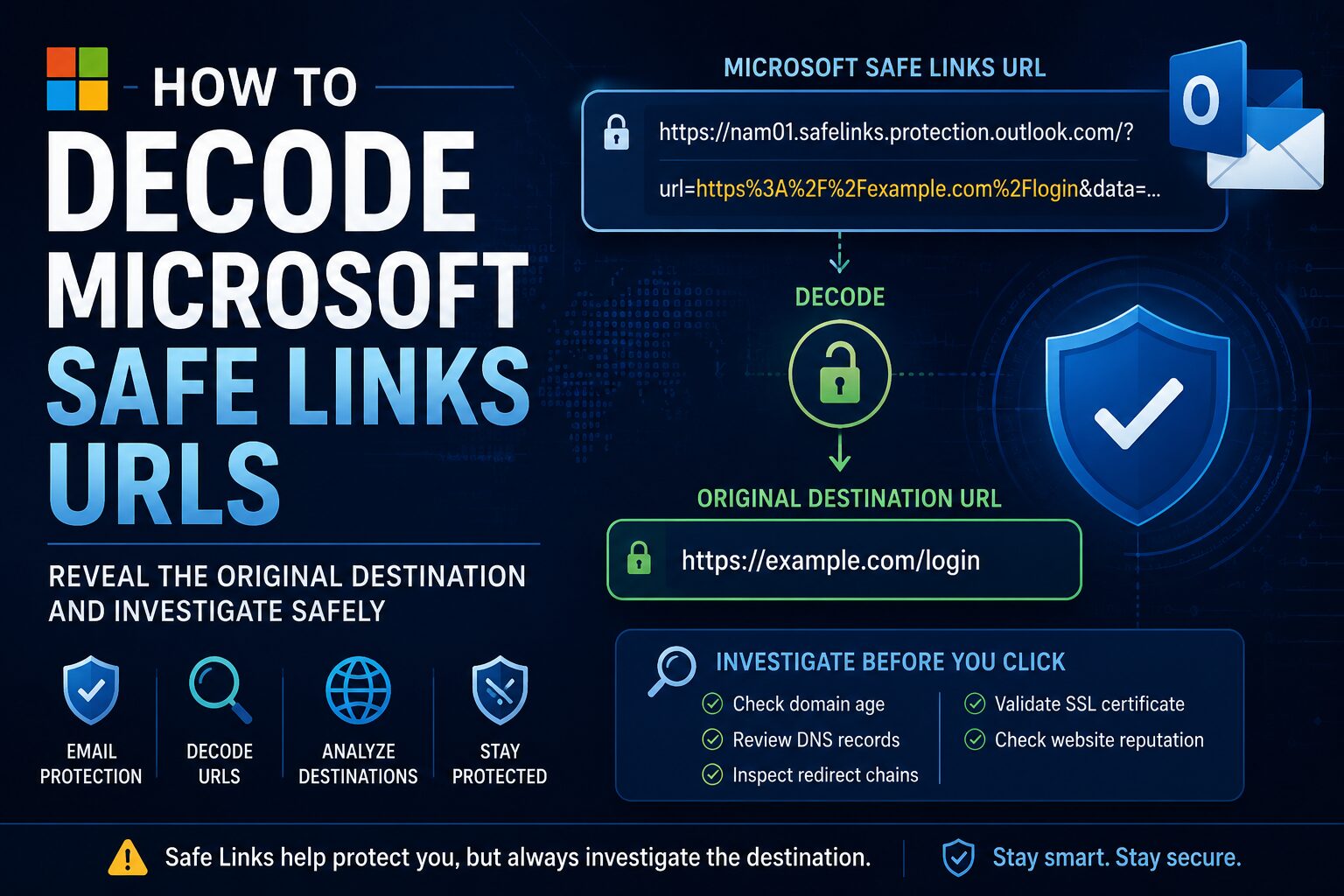
Microsoft Safe Links URLs can hide the original destination behind a rewritten Microsoft Defender link. This guide explains how Safe Links work, how to manually decode them, what mistakes to avoid, and how to safely investigate the decoded URL during phishing analysis.
Microsoft Defender for Office 365 Safe Links helps protect users by rewriting URLs in email, Microsoft Teams, and supported Microsoft 365 apps. When a user clicks a protected link, Microsoft checks the destination before allowing access.
Paste the full Microsoft Safe Links URL into the IT Knowledge Bases Safe Link Decoder.
What Are Microsoft Safe Links?
Microsoft Safe Links are rewritten URLs created by Microsoft Defender for Office 365. Instead of showing only the original destination, the link is wrapped inside a Microsoft protection domain such as:
https://nam01.safelinks.protection.outlook.com/?url=https%3A%2F%2Fexample.com%2Flogin&data=...The original destination is usually stored inside the url= parameter. Because that value is URL encoded, it can look unreadable at first glance.
Why Microsoft Rewrites URLs
Microsoft rewrites URLs to provide security checks when links are clicked. Safe Links can help with:
- Time-of-click URL analysis
- Malicious URL detection
- Protection against delayed weaponization
- Click tracking and reporting
- Microsoft Defender investigation workflows
This matters because attackers may send a link that appears harmless at delivery time and later change the destination to a phishing page or malware host.
Anatomy of a Microsoft Safe Links URL
Example Safe Links URL:
https://nam01.safelinks.protection.outlook.com/?url=https%3A%2F%2Fexample.com%2Finvoice&data=05%7C01...The most important part is:
url=https%3A%2F%2Fexample.com%2FinvoiceThe value after url= is the encoded destination:
https%3A%2F%2Fexample.com%2FinvoiceDecoded, it becomes:
https://example.com/invoiceHow URL Encoding Works
URL encoding replaces special characters with percent-encoded values.
| Character | Encoded Value |
|---|---|
: |
%3A |
/ |
%2F |
? |
%3F |
= |
%3D |
& |
%26 |
How to Decode Microsoft Safe Links Manually
Step 1: Find the URL Parameter
Look for url= inside the Safe Links URL.
url=https%3A%2F%2Fexample.com%2FinvoiceStep 2: Copy the Encoded Value
Copy only the encoded destination value, not the full Safe Links URL.
https%3A%2F%2Fexample.com%2FinvoiceStep 3: Decode the Value
Decode the percent-encoded characters.
https://example.com/invoiceYou now have the original destination that Microsoft Safe Links wrapped.
Common Safe Links Investigation Mistakes
Mistake 1: Trusting the Decoded URL
A decoded URL is not automatically safe. Safe Links decoding only reveals the destination. It does not prove that the destination is legitimate.
Before visiting the URL, check:
- Domain age
- DNS records
- Registrar details
- Redirect chains
- SSL certificate information
- Page reputation
Mistake 2: Ignoring Redirects
Attackers often hide the final phishing destination behind redirects.
Safe Links
→ Redirect service
→ URL shortener
→ Compromised website
→ Credential harvesting page
The decoded Safe Links destination may only be the first hop.
Mistake 3: Only Looking at the Visible Brand
Phishing domains often use lookalike names, extra words, or misleading subdomains.
microsoft-support-login.comThat is not the same as:
microsoft.comAlways review the registered domain, not just the visible words in the URL.
How to Investigate a Decoded Safe Links URL
Check Domain Registration
Review the domain age, registrar, creation date, and expiration date. Recently registered domains should receive extra scrutiny during phishing investigations.
Useful tool: RDAP Domain Lookup
Review DNS Records
DNS records can reveal where the domain is hosted and whether it is configured for email abuse.
Check:
- A and AAAA records
- MX records
- TXT records
- SPF records
- DMARC records
- Nameservers
Useful tool: DNS Lookup Tool
Review Redirect Chains
Do not assume the decoded URL is the final destination. Investigate whether it redirects to another domain, URL shortener, compromised website, or login page.
Useful tool: Phishing URL Scanner
Use the IT Knowledge Bases Safe Link Decoder
The Safe Link Decoder helps analysts quickly extract and decode the original URL from Microsoft Safe Links formatting.
The tool can help:
- Extract the original URL from a Safe Links URL
- Decode URL-encoded characters
- Reduce manual investigation time
- Support phishing triage workflows
Frequently Asked Questions
Can Microsoft Safe Links URLs be malicious?
Yes. Safe Links provides protection, but the decoded destination can still require investigation. Always review the URL, domain, redirects, and surrounding email context.
Does Safe Links change the destination website?
No. Safe Links rewrites the URL for inspection and protection purposes, but the original destination is preserved inside the rewritten URL.
Can attackers abuse Safe Links?
Attackers do not control Microsoft’s Safe Links infrastructure, but links they send may become wrapped by Safe Links during email delivery.
Is it safe to click a Safe Links URL?
Not automatically. Security analysts should decode and investigate the destination before visiting suspicious links.
What parameter contains the original Safe Links destination?
In many Safe Links URLs, the original destination is stored in the url= parameter as a URL-encoded value.
Conclusion
Microsoft Safe Links helps protect users by rewriting URLs and checking destinations when links are clicked. During phishing investigations, analysts often need to decode Safe Links URLs to recover the original destination.
The safest workflow is to decode the URL, review the destination, check DNS and domain registration details, inspect redirects, and avoid clicking suspicious links directly from a production workstation.